Processor
Once you have added a job via Add Job in the Search panel, the job folder appears in the Jobs drawer. Click the Jobs button in the top-right corner of the toolbar to open the drawer.
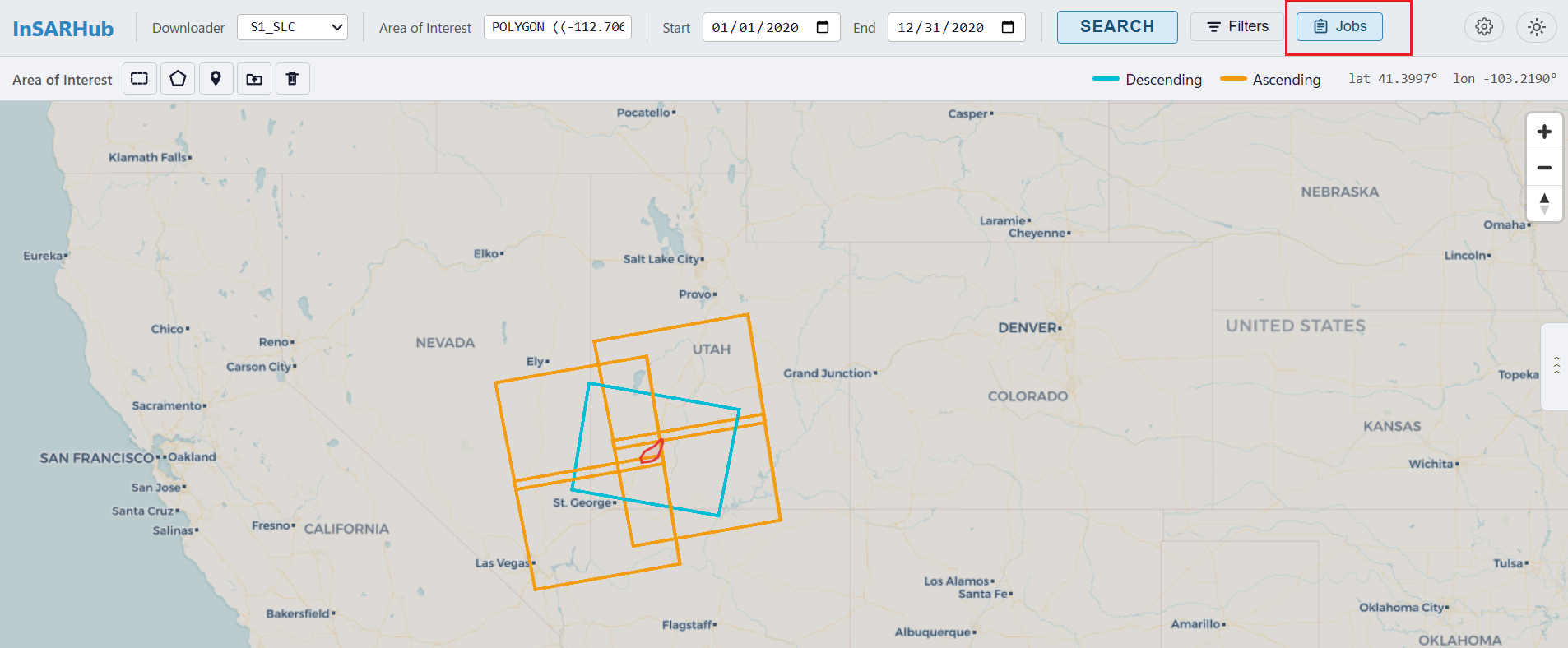
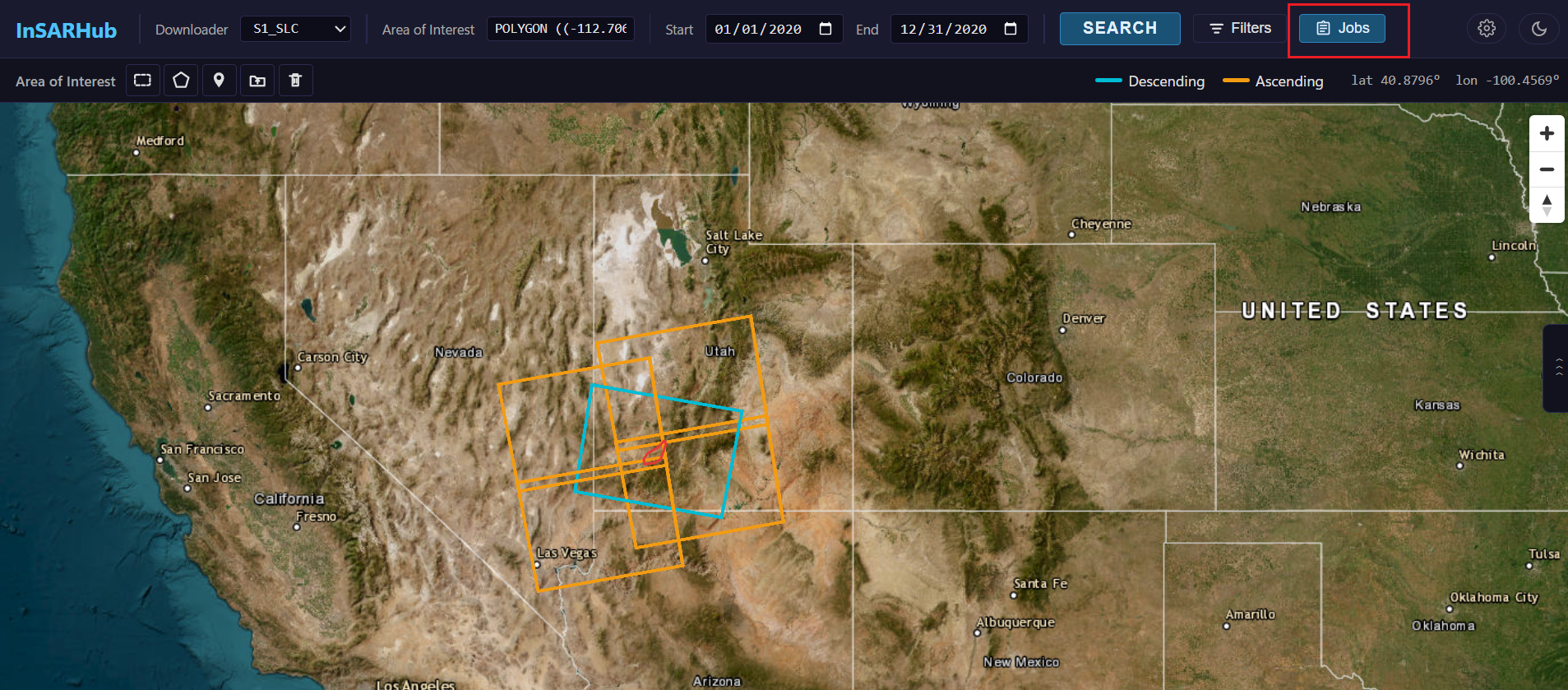
The Jobs button in the top-right toolbar opens the Job Folders drawer.
Then click the downloader tag (e.g. S1_SLC) on the job folder to open its detail panel.
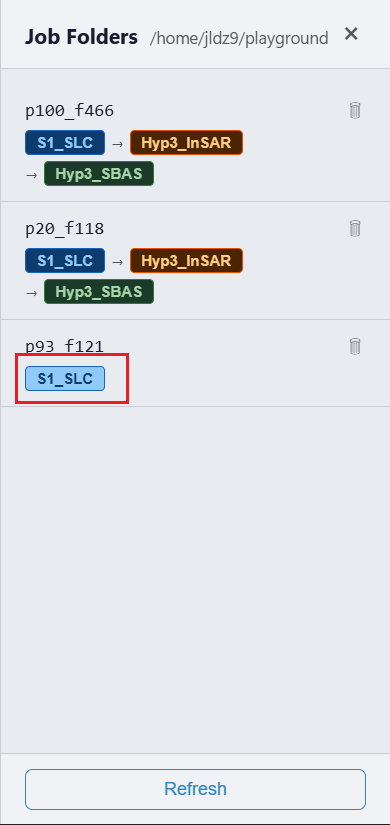
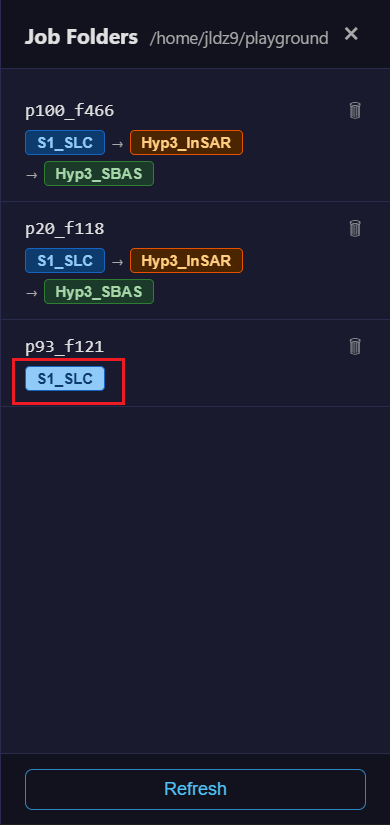
Click the downloader tag on a job folder to open its detail panel.
Selecting Pairs
Constructing a well-designed interferometric pair network is a critical step in time-series InSAR analysis. A carefully chosen SBAS network balances temporal and perpendicular baseline constraints to maximize coherence while ensuring full temporal connectivity across the scene stack.
Click Edit Network to open the interactive baseline–time graph editor.
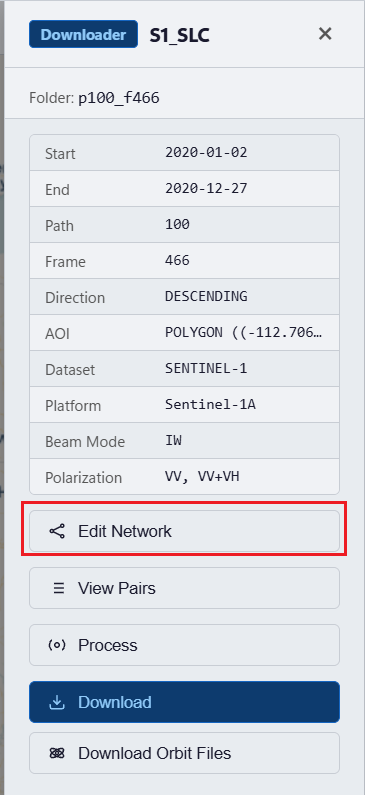
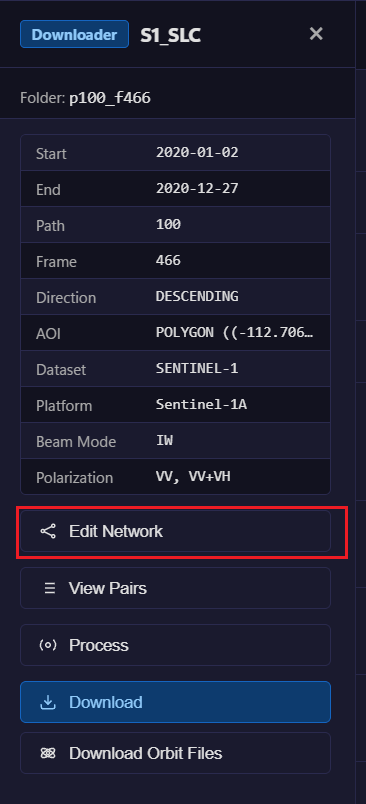
Select Edit Network to open network modification window
The network graph is interactive. Drag from one scene node to another to create a new pair. Click an existing edge to remove it from the network. Hover over any edge to view its temporal baseline, perpendicular baseline, and quality score.
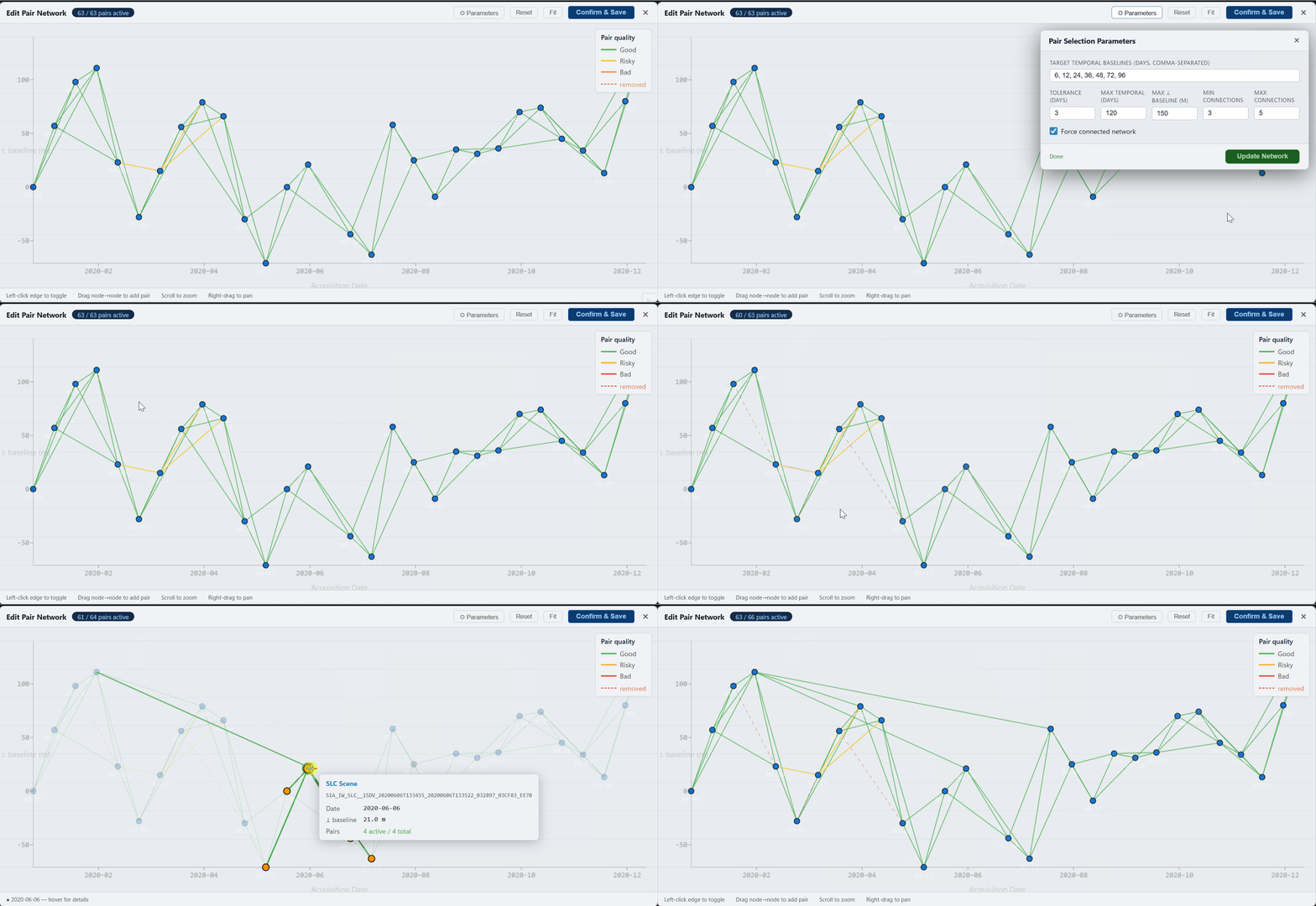
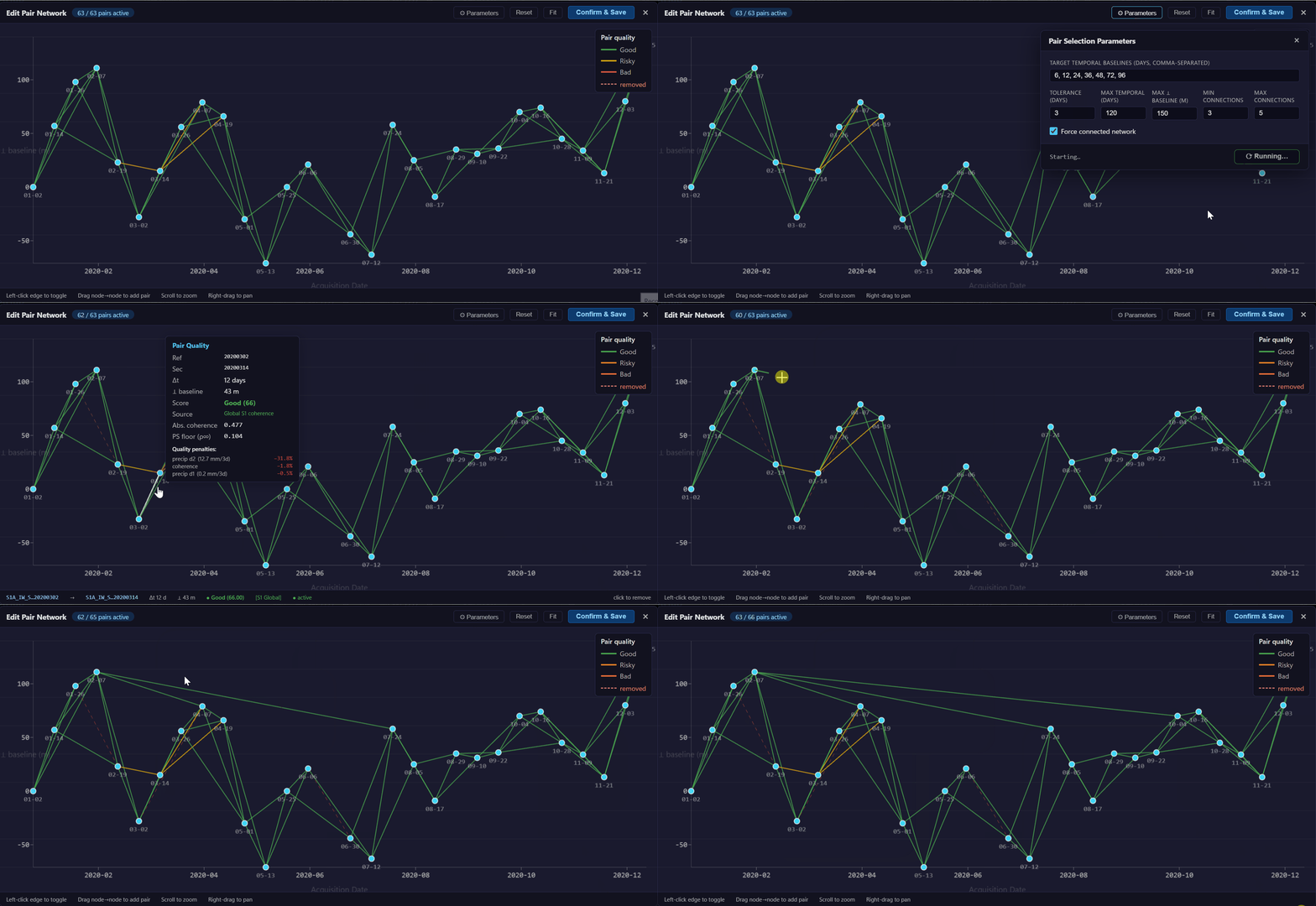
Baseline–time graph showing the interferometric network. Click any edge to toggle it, or drag between nodes to add a new pair.
Edge colors reflect the pre-computed pair quality score — green edges are high quality, yellow are moderate, and red are poor. Hover over any edge to view its temporal baseline, perpendicular baseline, and quality score.
The network editor supports two workflows:
Manual editing — click any edge (interferogram pair) to toggle it active or removed. Drag from one scene node to another to create a new pair. Click Save to persist the updated pair list to the job folder.
Auto pair selection — click ⚙ Parameters to generate the network automatically from the scene stack:
| Parameter | Description |
|---|---|
| Target Temporal Baselines | Comma-separated target temporal separations (days) to form pairs around |
| Tolerance | Allowed deviation (days) from each target baseline |
| Max Temporal | Hard upper limit on temporal baseline (days) |
| Max Perp. Baseline | Hard upper limit on perpendicular baseline (m) |
| Min Connections | Minimum number of interferograms each scene must participate in |
| Max Connections | Maximum number of interferograms per scene |
| Force Connected Network | Add extra pairs to guarantee no isolated nodes |
View Pairs — lists all selected interferometric pairs with their temporal and perpendicular baseline values.
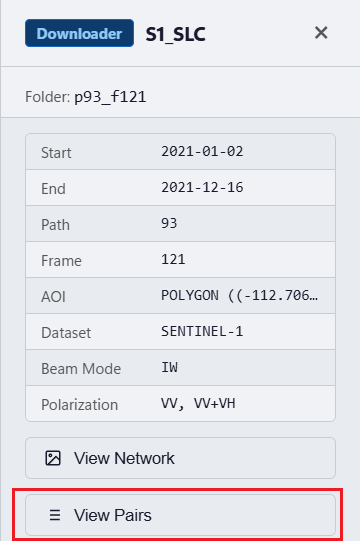
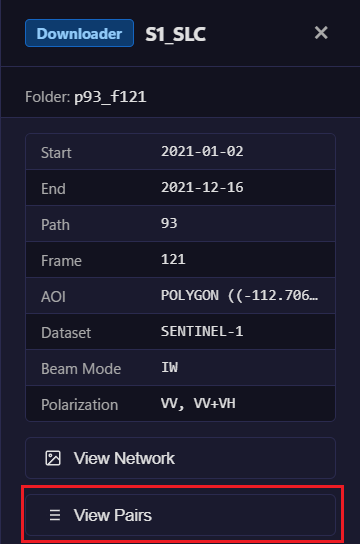
List of selected interferometric pairs with baseline information.
Decay Maps
Click Decay Maps to open the Coherence Decay Maps drawer. This overlays seasonal S1 Global Coherence maps on the main map, giving you a quick read on expected coherence at your site before submitting any jobs.
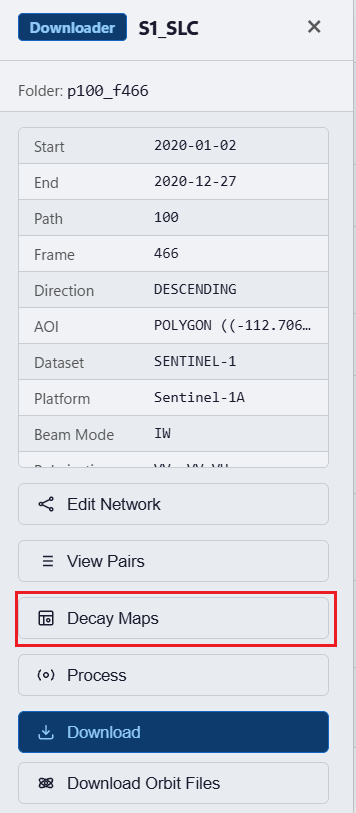
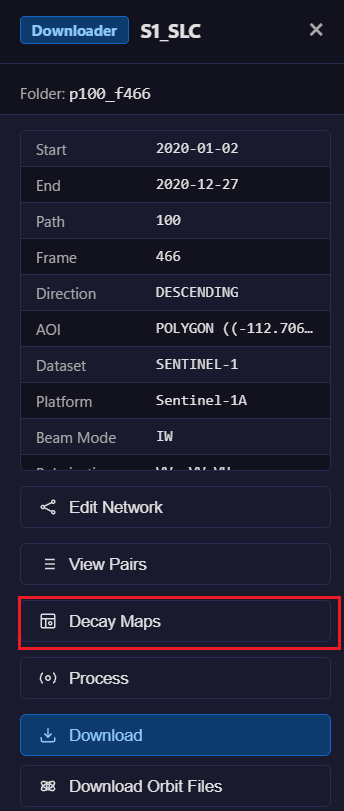
The Decay Maps button in the downloader job panel.
Each available season and polarization is listed. Click any of the three band buttons to overlay it on the map:
| Band | Symbol | What it shows |
|---|---|---|
| 1 | γ∞ PS floor | Permanent-scatterer coherence floor — the minimum coherence that persists regardless of time gap |
| 2 | γ0 initial coh | Initial coherence at acquisition — higher values indicate better short-baseline coherence |
| 3 | τ decay | Decorrelation time constant (days) — larger values mean coherence persists longer |
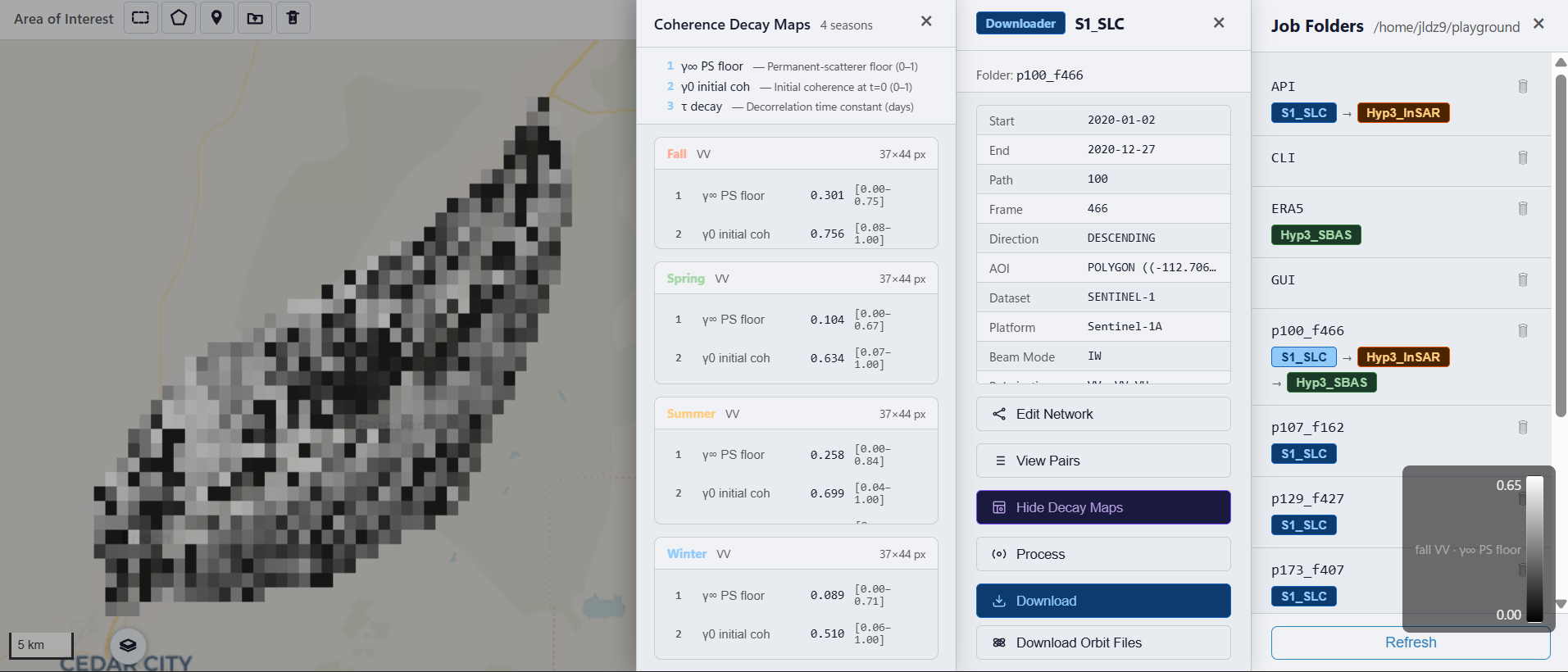
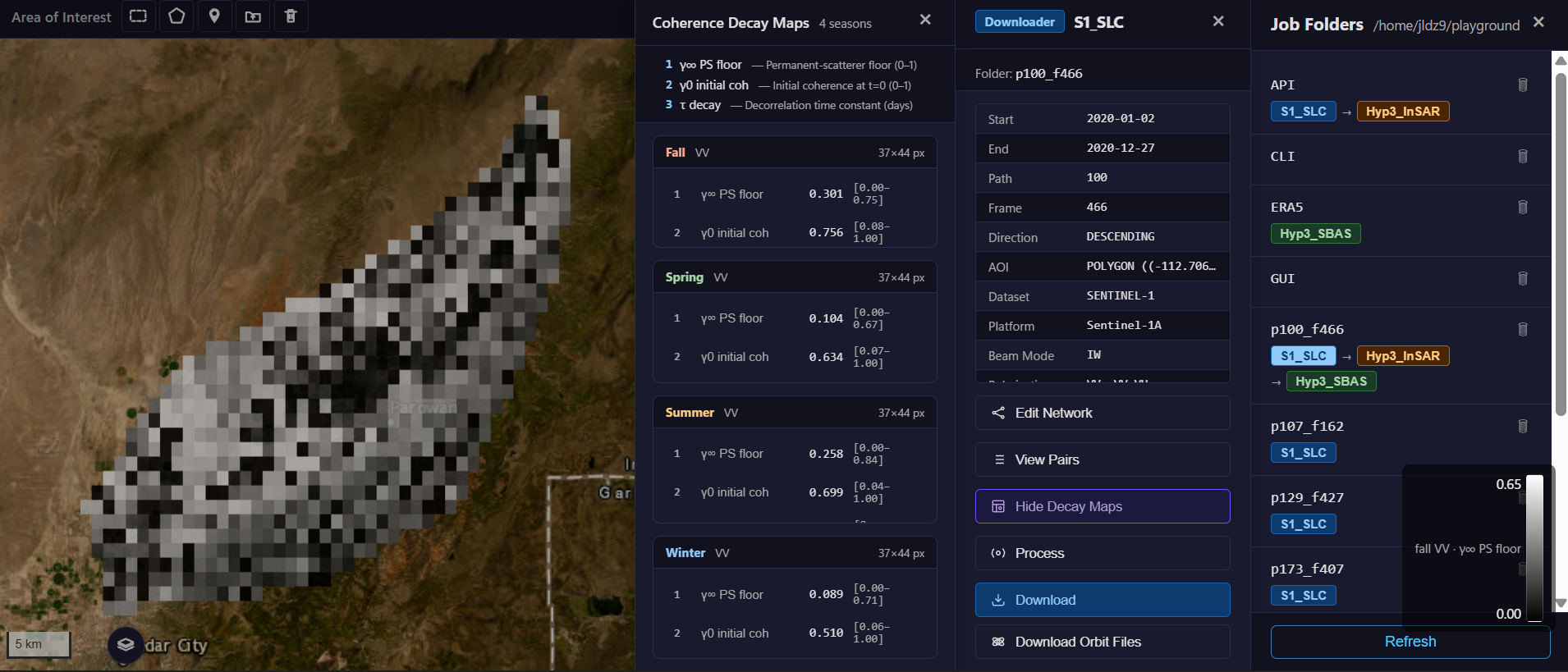
Coherence decay map overlaid on the basemap. Hover over the map to read pixel values.
Click the same button again to hide the overlay. Click a different band to switch layers.
View Data
Once interferograms have been downloaded, click View Data in the Processor panel to open the data browser. This lists all HyP3 product files extracted from the downloaded .zip archives and lets you overlay any of them directly on the map.
ISCE2 not supported
View Data is only available for HyP3 outputs. ISCE2 interferograms are stored in radar (range/azimuth) coordinates and do not have a geographic coordinate system until geocoded by MintPy. Use the Analyzer panel to geocode and view ISCE2 results.
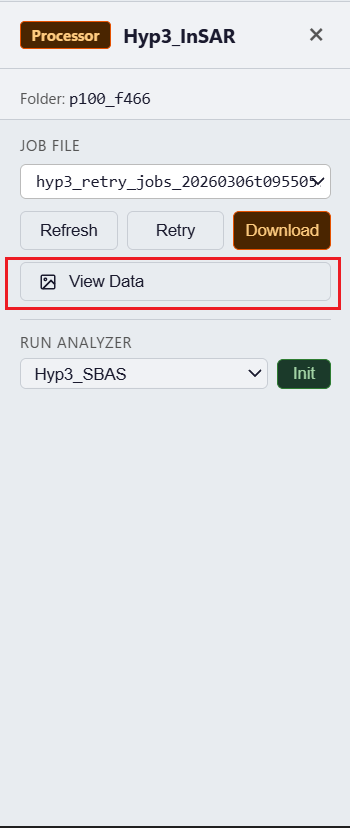
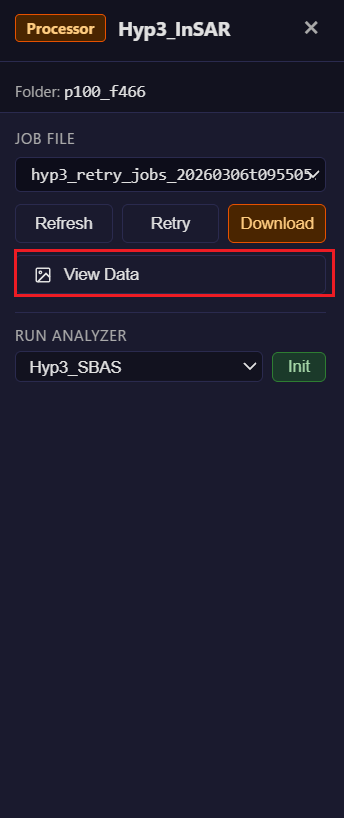
The View Data button in the Processor panel.
Each interferogram pair is listed with its available product files:
| Type | Description |
|---|---|
unw_phase |
Unwrapped interferometric phase |
corr |
Interferogram coherence |
dem |
Digital elevation model used in processing |
lv_theta |
Look vector elevation angle |
lv_phi |
Look vector azimuth angle |
water_mask |
Water body mask |
Click any file to render it as a raster overlay on the map. Click again to hide it.
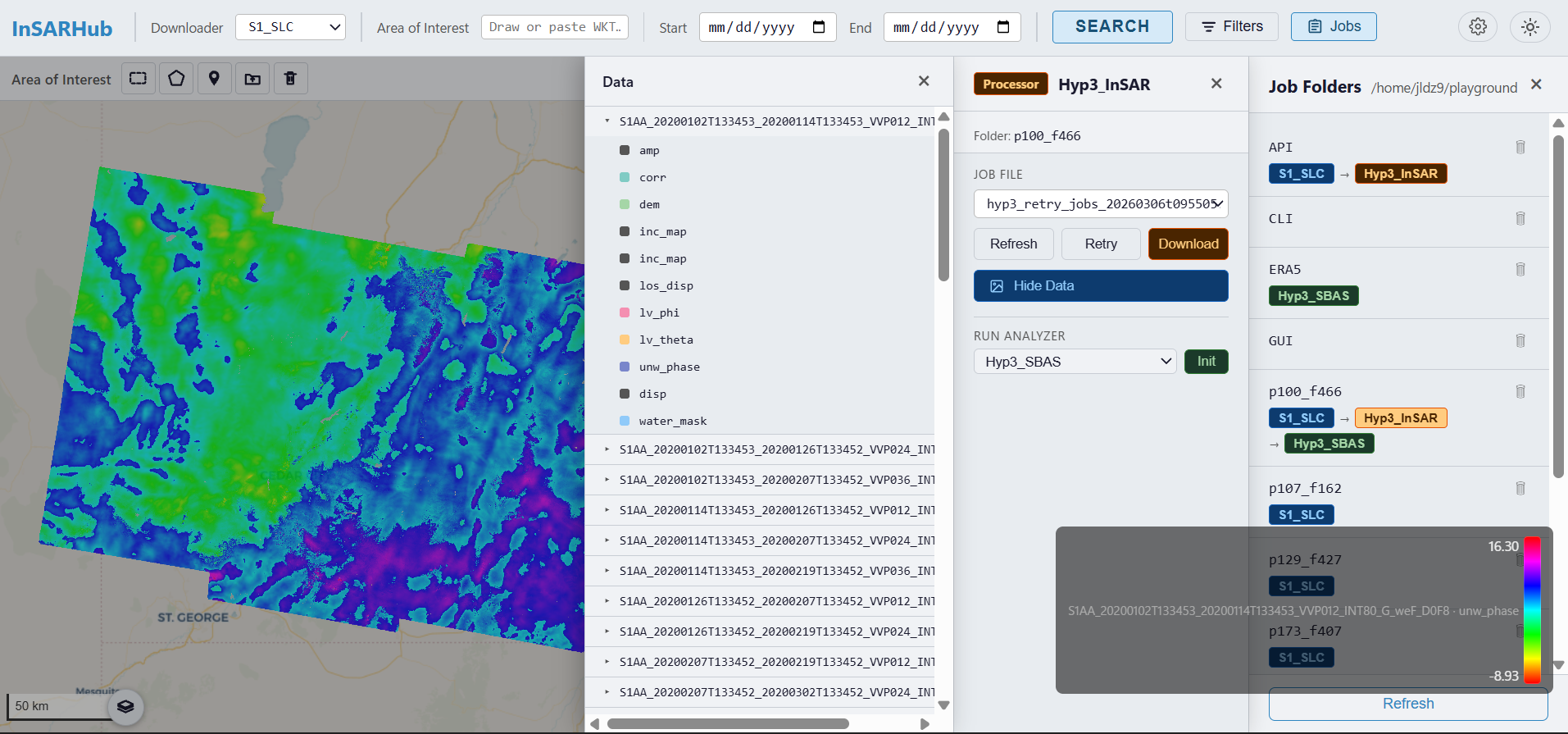
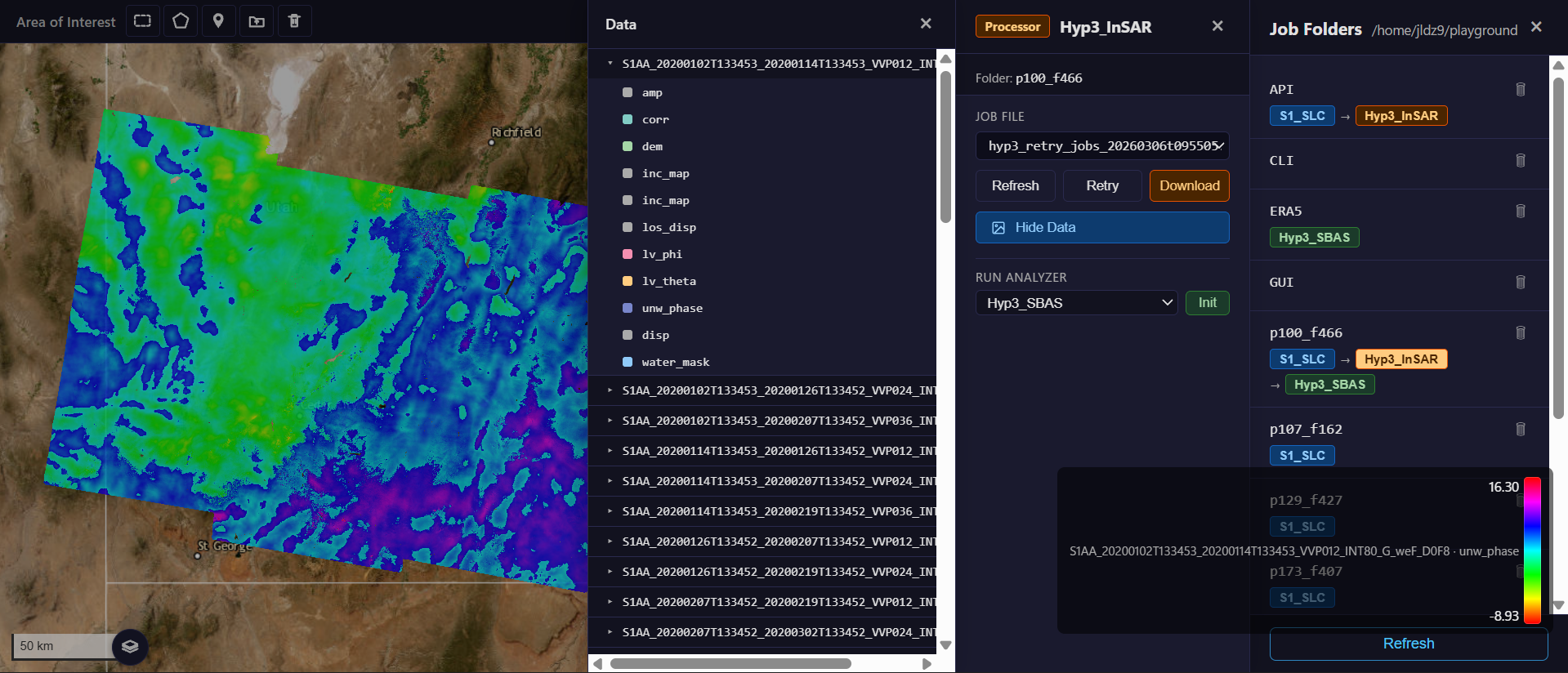
HyP3 interferogram product overlaid on the basemap.
Submitting Jobs
Once the pair network is reviewed and satisfactory, click Process to open the processor selection dialog.
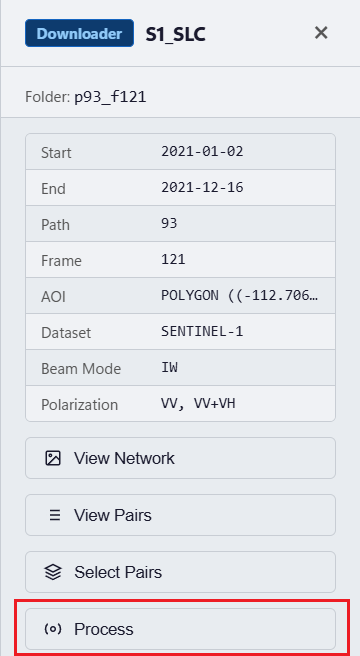
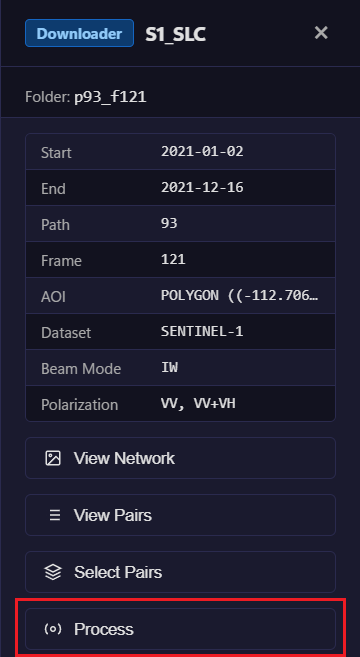
Click Process to open the processor selection dialog.
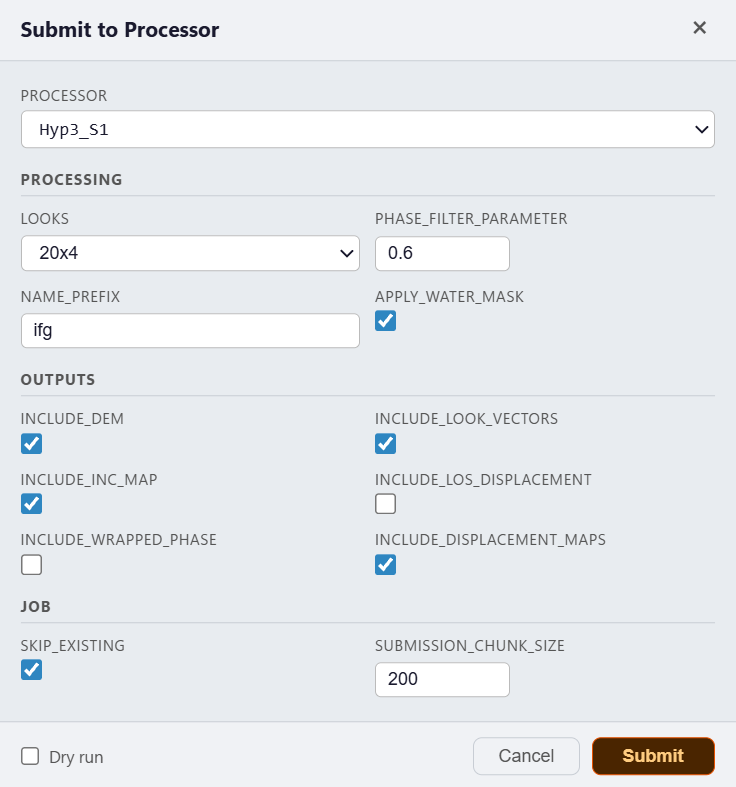
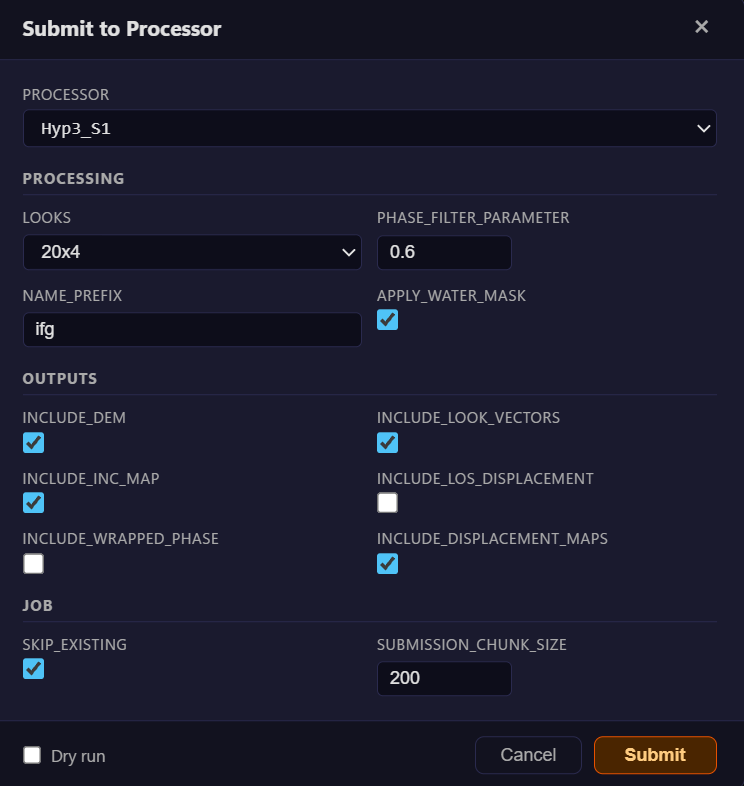
Select Hyp3_S1 for cloud processing via ASF HyP3.
Select Hyp3_S1 and confirm to submit all pairs to ASF HyP3 for cloud processing. No local SAR software required.
Test before submitting
Check Dry Run in the dialog to validate credentials without submitting real jobs. A successful dry run produces:
Once submitted, a Processor tag appears on the job folder in the drawer.
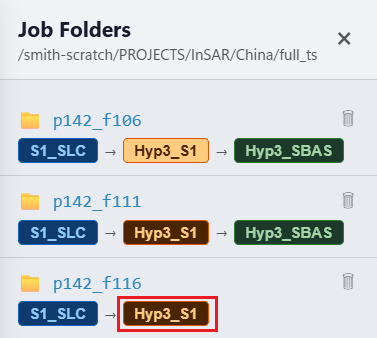
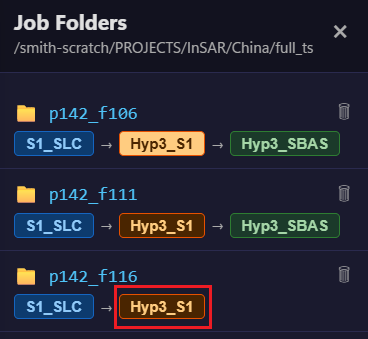
The Processor tag appears after jobs are successfully submitted.
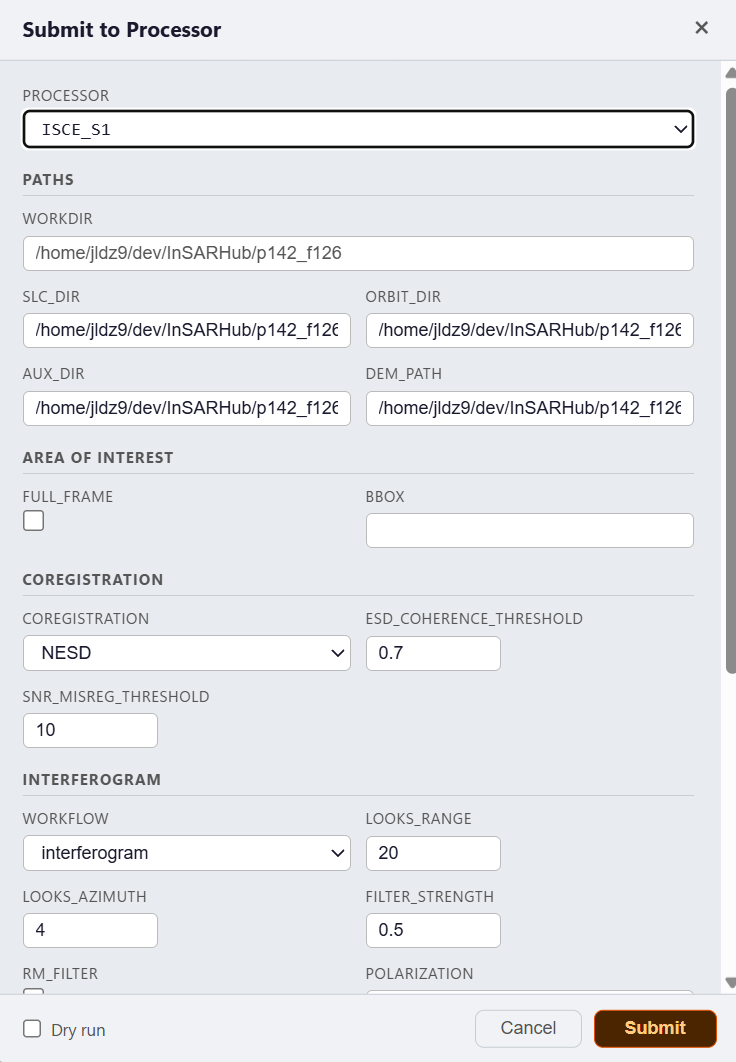
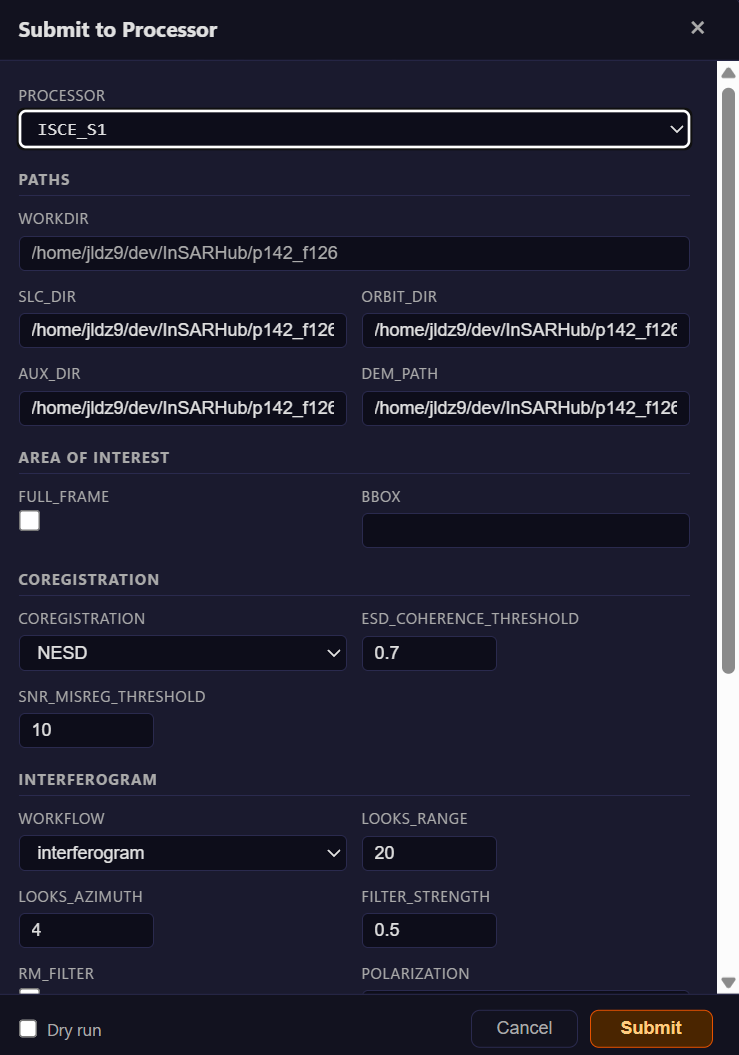
Select ISCE_S1 for local / HPC processing via ISCE2.
Select ISCE_S1 and configure the required parameters — bounding box (S N W E), SLC directory, and optionally HPC mode. Click Submit to start stackSentinel locally in the background, or submit steps to SLURM with HPC Mode enabled.
In HPC mode, each step runs through a sliding-window SLURM manager that keeps at most Max Concurrent HPC (default 12) child jobs active at once. Steps are chained automatically via --dependency=afterok. Retry detects HPC mode from the saved job state — no reconfiguration needed after a failure.
Dry run first
Enable Dry Run to preview run scripts and verify paths without executing. Recommended before the first real submission.
SLC files required
ISCE2 processes SLC .SAFE files locally. Make sure scenes are downloaded to the SLC directory before submitting.
Once submitted, a Processor tag appears on the job folder in the drawer.
For a full description of all parameters, see the Processor Reference.
Monitoring Jobs
A job file (hyp3_jobs.json) is saved to the job folder automatically. A drop-down at the top of the panel lists all job files, including retry files (e.g. hyp3_retry_jobs_*.json). Select a file to inspect a specific submission.
Click Refresh to poll the latest statuses from HyP3:
| Status | Meaning |
|---|---|
RUNNING |
Job is actively processing on HyP3 |
SUCCEEDED |
Processing completed successfully |
FAILED |
Processing failed |
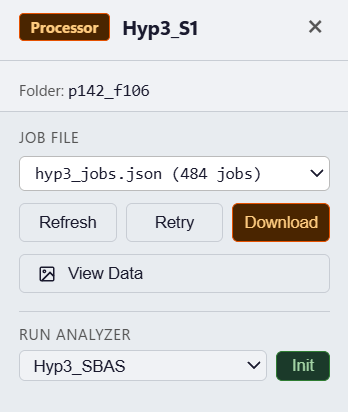
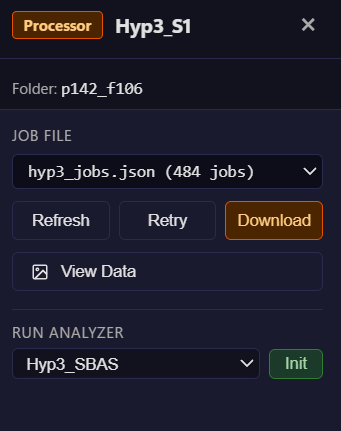
The processor job panel showing HyP3 job statuses.
If any jobs show FAILED, click Retry to resubmit them. Once all show SUCCEEDED, click Download to fetch the interferograms.
Click Refresh to read the current step and command statuses from disk:
| Status | Meaning |
|---|---|
RUNNING |
Step is actively executing |
SUCCEEDED |
Step completed successfully |
FAILED |
Step failed — click Retry to re-run |
PENDING |
Step is waiting for a prior step to finish |
Each step may contain multiple commands (e.g. one per SLC). Per-command status is shown when a step is expanded.
If any steps show FAILED, click Retry to re-run them. Click Cancel to stop a running local process or scancel active SLURM jobs.
Other Actions
| Button | Description |
|---|---|
| Refresh | Poll HyP3 for latest job statuses |
| Retry | Resubmit all failed jobs |
| Download | Download all succeeded interferograms |
| Watch | Poll HyP3 continuously until all jobs complete, then download automatically |
| Credits | Check remaining HyP3 processing credits |
| Button | Description |
|---|---|
| Refresh | Read step/command statuses from disk |
| Retry | Re-run all failed steps |
| Cancel | Stop running local process or scancel SLURM jobs |
| Watch | Poll step statuses until all steps complete |
Once processing is complete and interferograms are ready, proceed to the Analyzer panel to run time-series InSAR analysis.