Processor
Submitting Jobs
Once the pair network is reviewed and satisfactory, click Process to open the processor selection dialog.
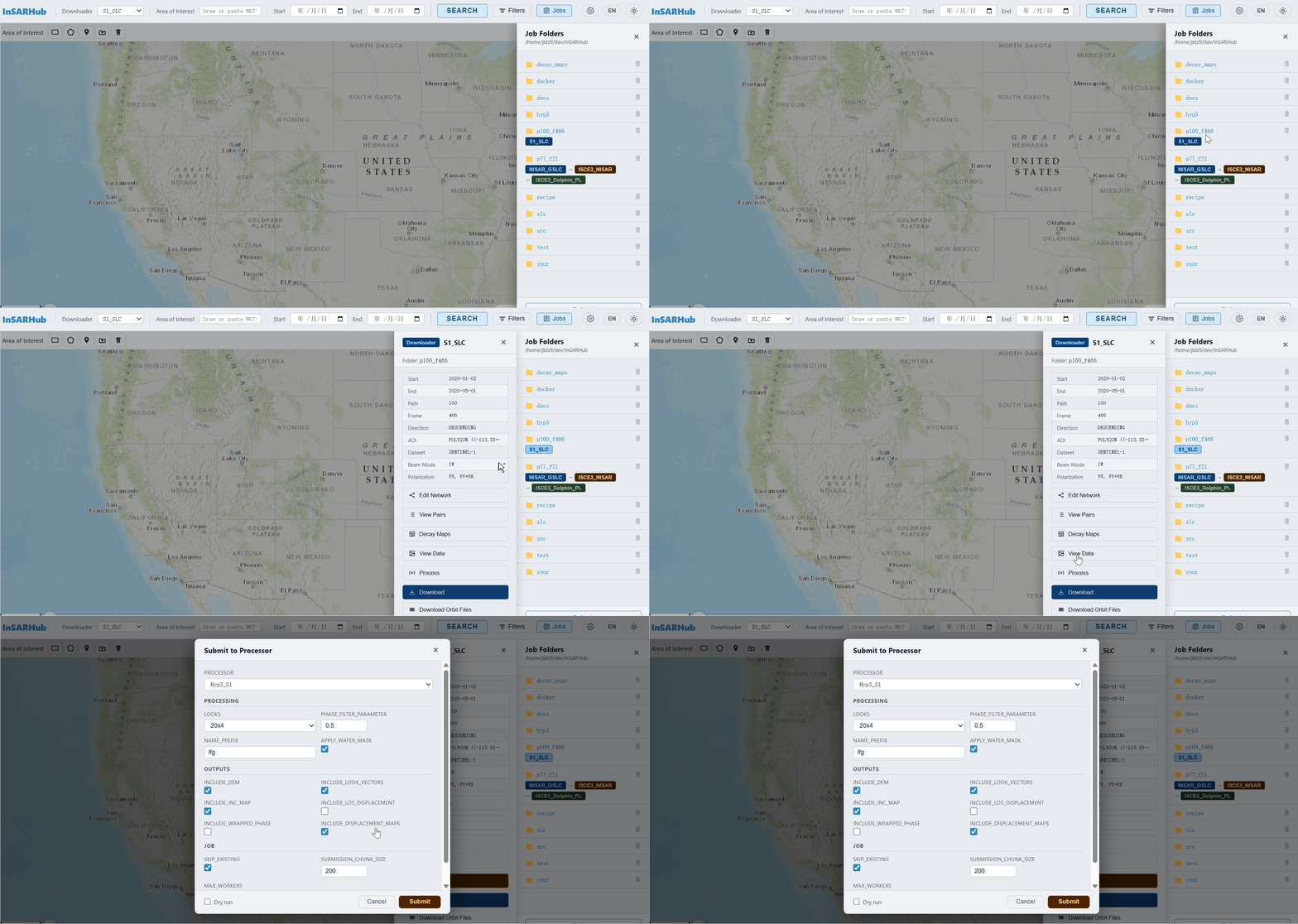
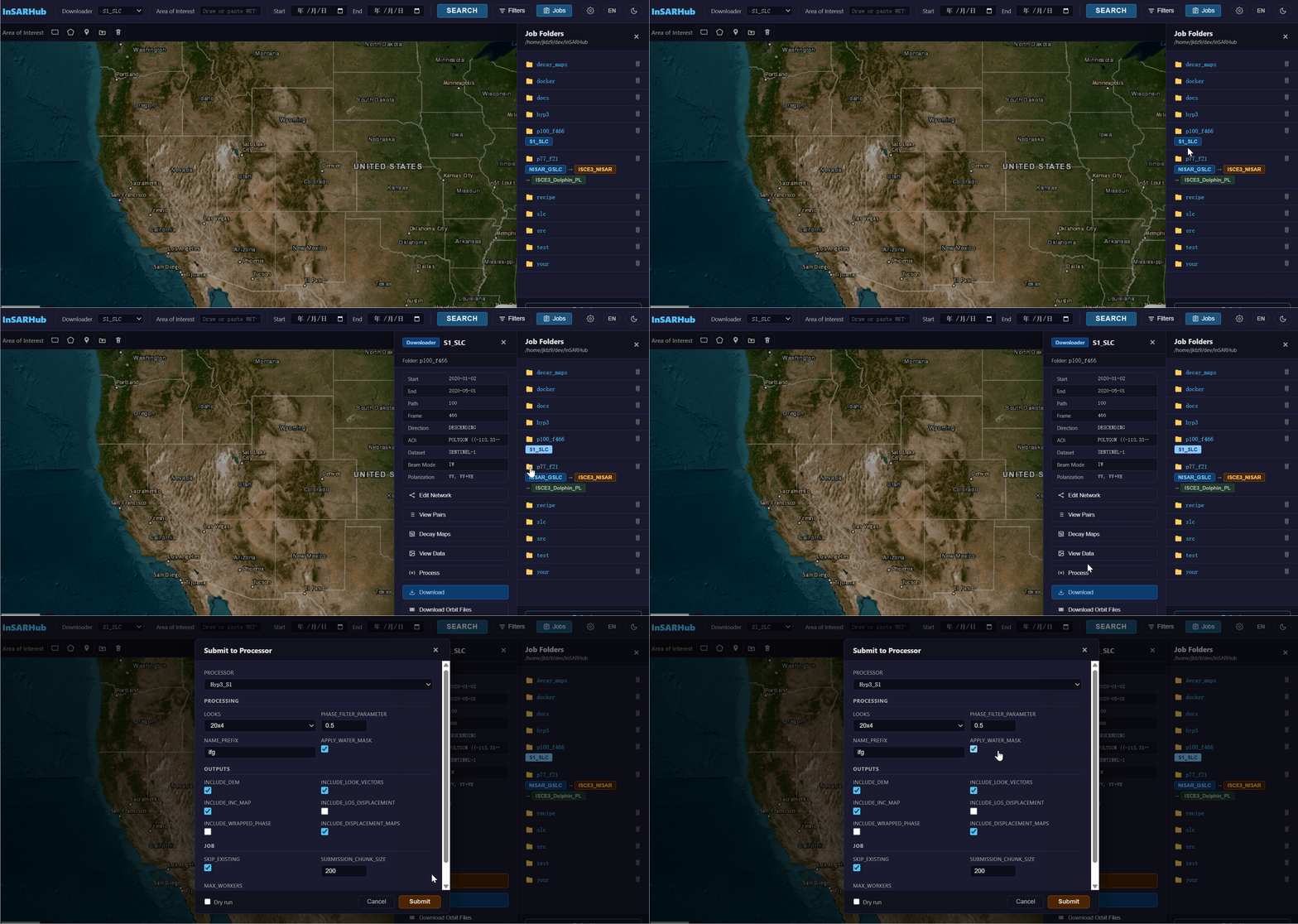
Click Process to open the processor selection dialog.
According to the source data, you may choose different processors:
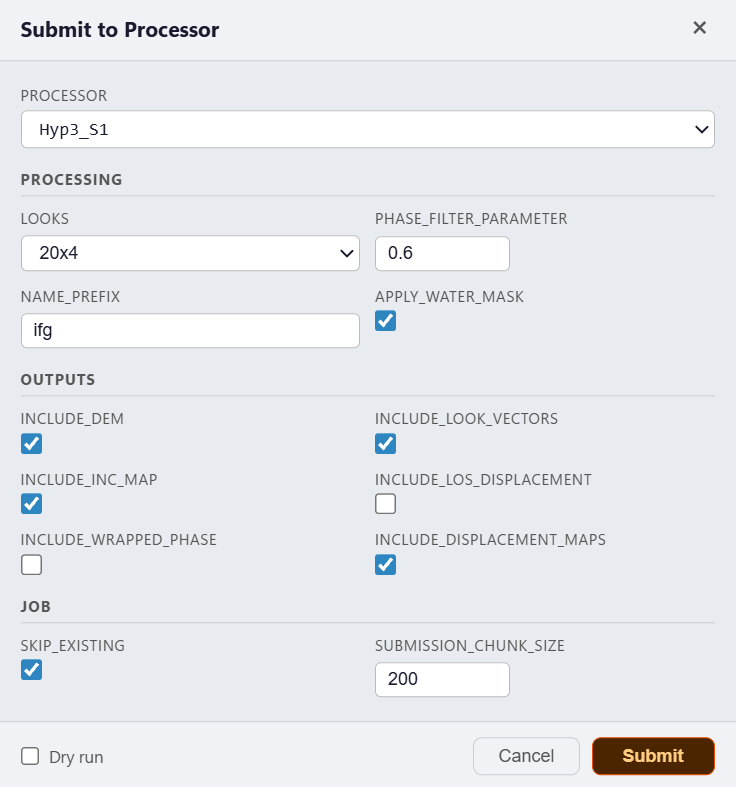
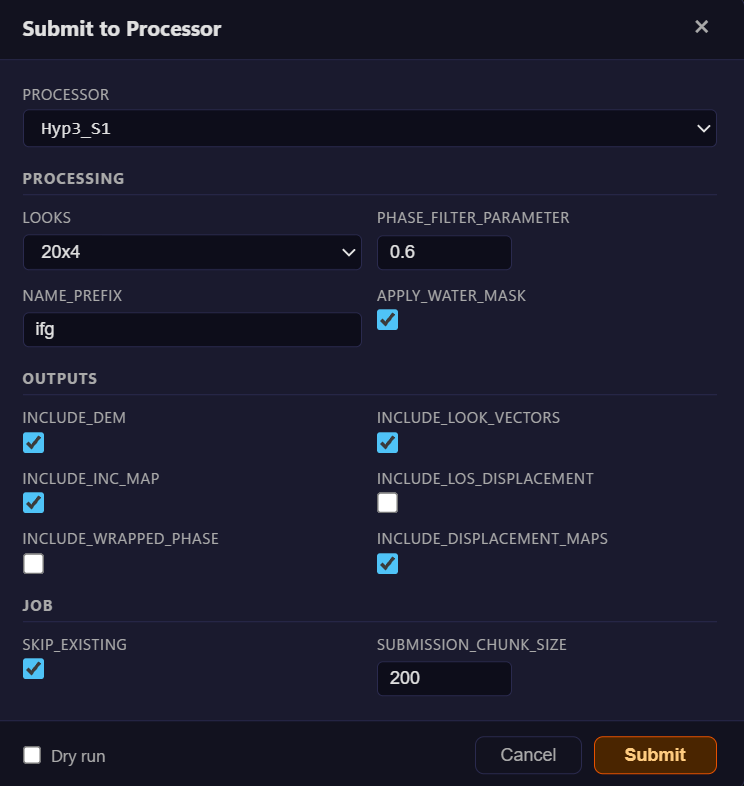
Select Hyp3_S1 for cloud processing via ASF HyP3.
Select Hyp3_S1 and confirm to submit all pairs to ASF HyP3 for cloud processing. No local SAR software required.
Test before submitting
Check Dry Run in the dialog to validate credentials without submitting real jobs. A successful dry run produces:
Once submitted, a Processor tag appears on the job folder in the drawer.
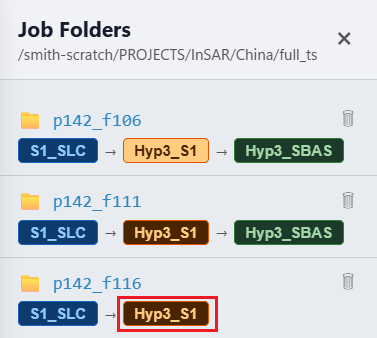
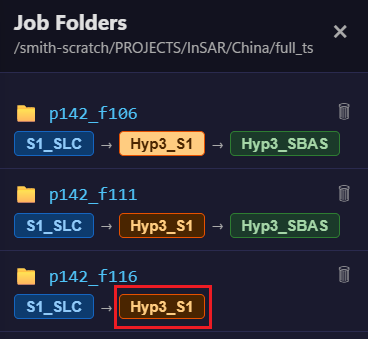
The Processor tag appears after jobs are successfully submitted.
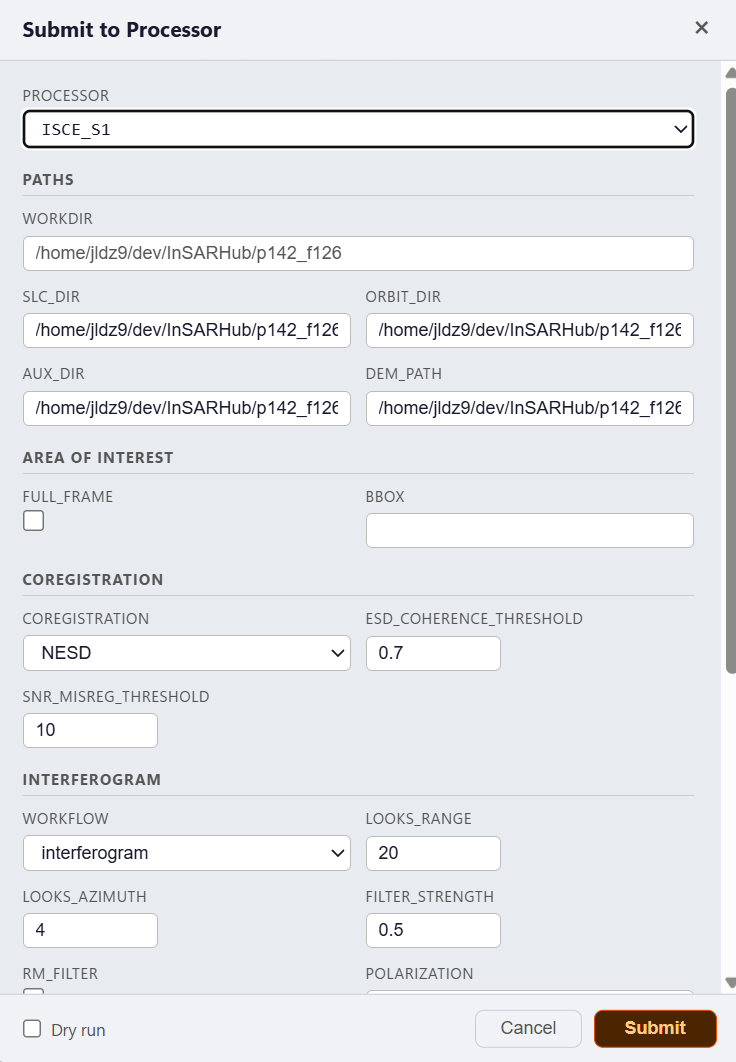
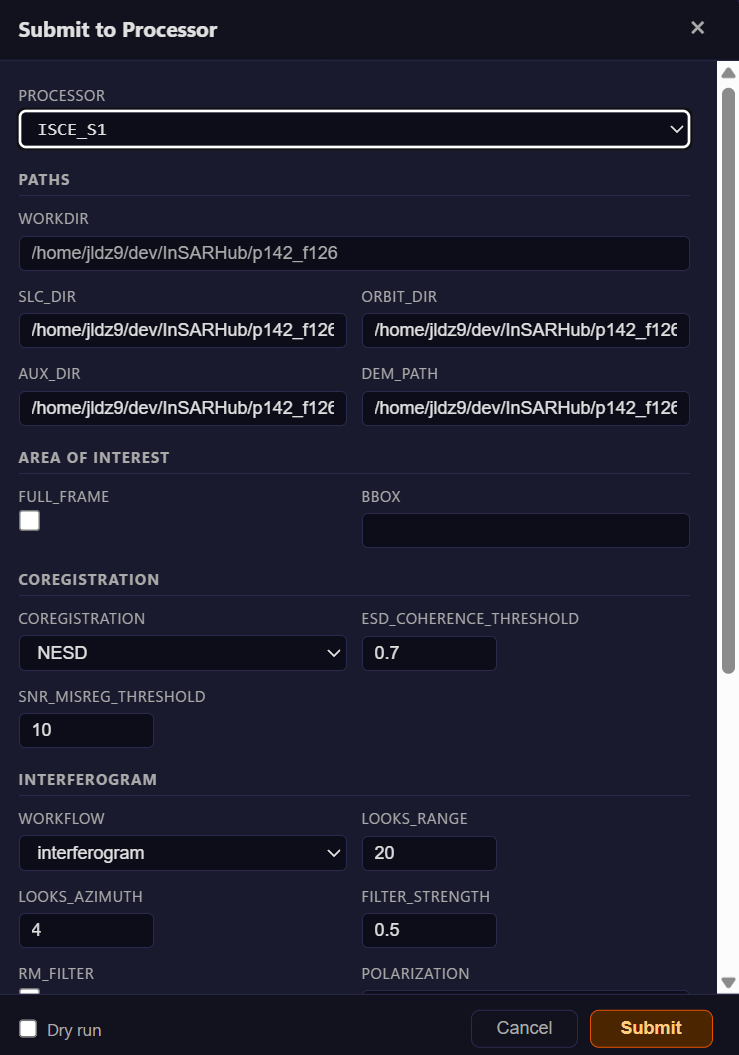
Select ISCE2_S1 for local / HPC processing via ISCE2.
Select ISCE2_S1 and configure the required parameters and submit for local, HPC or container processing
Dry run first
Enable Dry Run to preview run scripts and verify paths without executing. Recommended before the first real submission.
SLC files required
ISCE2 processes SLC .SAFE files locally. Make sure scenes are downloaded to the SLC directory before submitting.
Once submitted, a Processor tag appears on the job folder in the drawer.
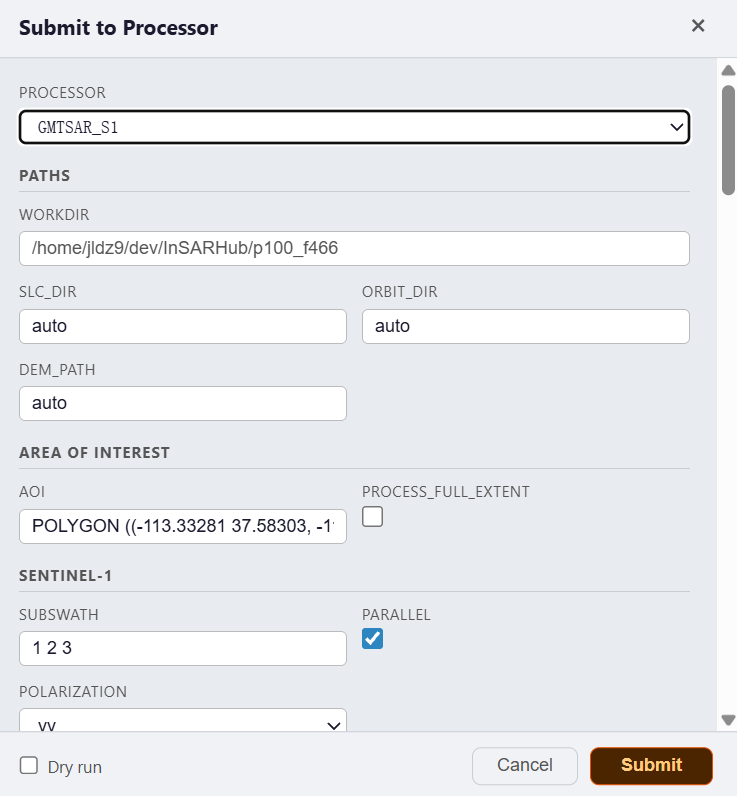
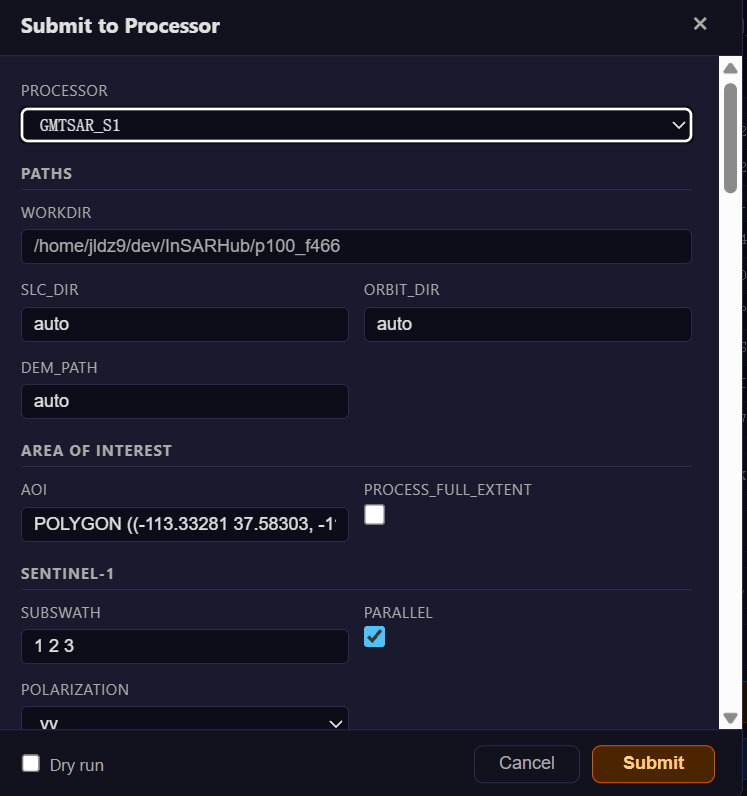
Select GMTSAR_S1 for local / HPC processing via GMTSAR.
Select GMTSAR_S1 for local / HPC processing via GMTSAR. Similiar to ISCE processor
SLC files required
GMTSAR processes SLC .SAFE files locally — make sure scenes are downloaded to the SLC directory before submitting.
Once submitted, a Processor tag appears on the job folder in the drawer.
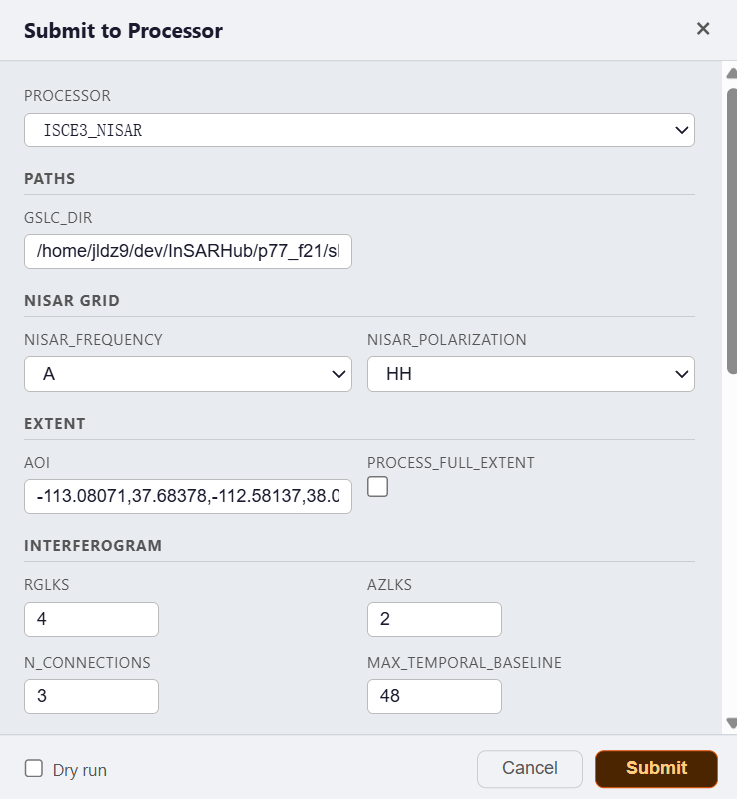
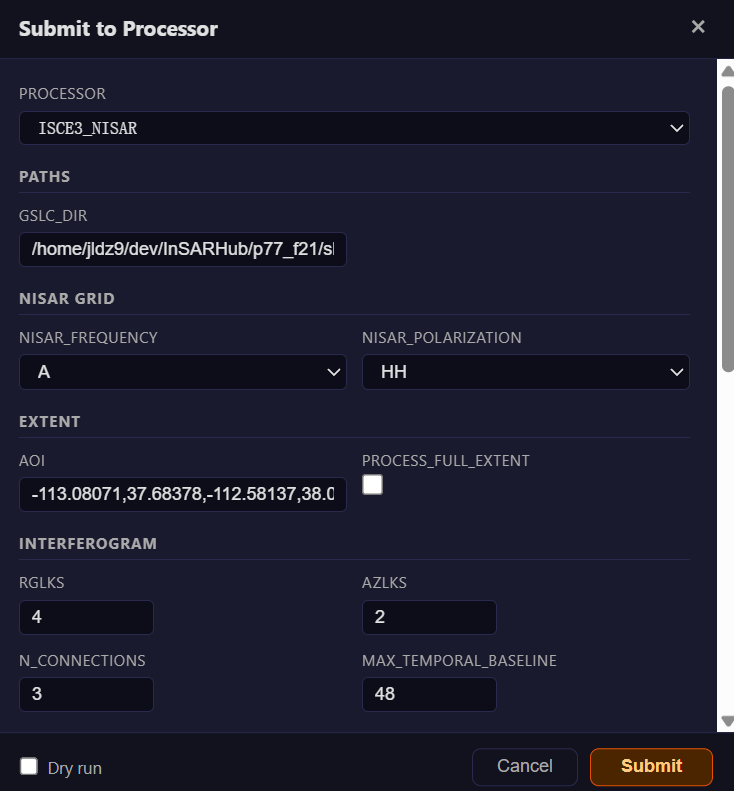
Select an ISCE3 processor (ISCE3_Burst or ISCE3_NISAR) for phase-linked processing via dolphin.
Select an ISCE3 processor for phase-linked processing with dolphin. Which one appears depends on the source data:
ISCE3_Burst— from anS1_Burstdownload (Sentinel-1 bursts).ISCE3_NISAR— from aNISAR_GSLCdownload (geocoded NISAR GSLC).
Once submitted, a Processor tag appears on the job folder in the drawer.
For a full description of all parameters, see the Processor Reference.
Monitoring Jobs
A job file (hyp3_jobs.json) is saved to the job folder automatically. A drop-down at the top of the panel lists all job files, including retry files (e.g. hyp3_retry_jobs_*.json). Select a file to inspect a specific submission.
Click Refresh to poll the latest statuses from HyP3:
| Status | Meaning |
|---|---|
RUNNING |
Job is actively processing on HyP3 |
SUCCEEDED |
Processing completed successfully |
FAILED |
Processing failed |
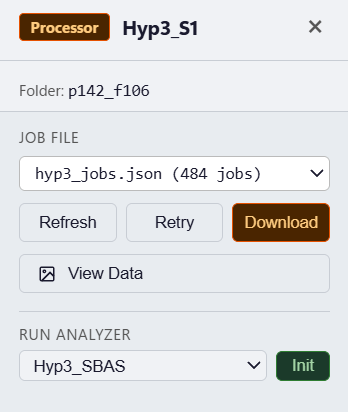
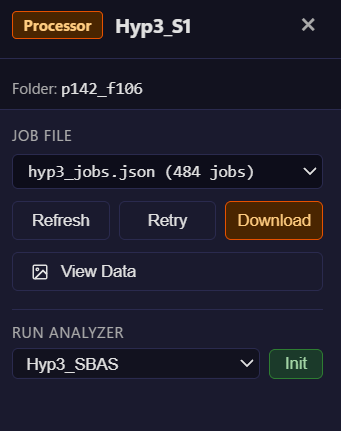
The processor job panel showing HyP3 job statuses.
If any jobs show FAILED, click Retry to resubmit them. Once all show SUCCEEDED, click Download to fetch the interferograms.
Click Refresh to read the current step and command statuses from disk:
| Status | Meaning |
|---|---|
RUNNING |
Step is actively executing |
SUCCEEDED |
Step completed successfully |
FAILED |
Step failed — click Retry to re-run |
PENDING |
Step is waiting for a prior step to finish |
Each step may contain multiple commands (e.g. one per SLC). Per-command status is shown when a step is expanded.
If any steps show FAILED, click Retry to re-run them. Click Cancel to stop a running local process or scancel active SLURM jobs.
Click Refresh to read stage/job statuses from disk. The stages are unzip, dem, p2p (P2P mode) or align, topo, intf, merge, unwrap (stack mode).
| Status | Meaning |
|---|---|
RUNNING |
Stage is actively executing |
SUCCEEDED |
Stage completed successfully |
FAILED |
Stage failed — click Retry to re-run |
PENDING |
Stage is waiting for a prior stage to finish |
Expand a stage to see its per-job status. If any stage shows FAILED, click Retry to re-run it. Click Cancel to stop a running local process or scancel active SLURM jobs.
Click Refresh to read per-stage statuses from disk (crop, ifg, stitch, unwrap).
| Status | Meaning |
|---|---|
RUNNING |
Stage is actively executing |
SUCCEEDED |
Stage completed successfully |
FAILED |
Stage failed — click Retry to re-run |
PENDING |
Stage is waiting for a prior stage to finish |
If any stage shows FAILED, click Retry to re-run it. Click Cancel to stop the run.
View Result
Once interferograms have been produced, click View Result in the Processor panel to open the data browser. This lists the processed product files and lets you overlay any of them directly on the map.
Geocoded results only
View Result overlays geocoded products: HyP3 interferograms, ISCE3 (unwrapped/, interferograms/), and GMTSAR (*_ll.grd). ISCE2 interferograms are stored in radar (range/azimuth) coordinates and have no geographic coordinate system until geocoded by MintPy — use the Analyzer panel to geocode and view those results.
Each interferogram pair is listed with its available product files:
Click any file to render it as a raster overlay on the map. Click again to hide it.
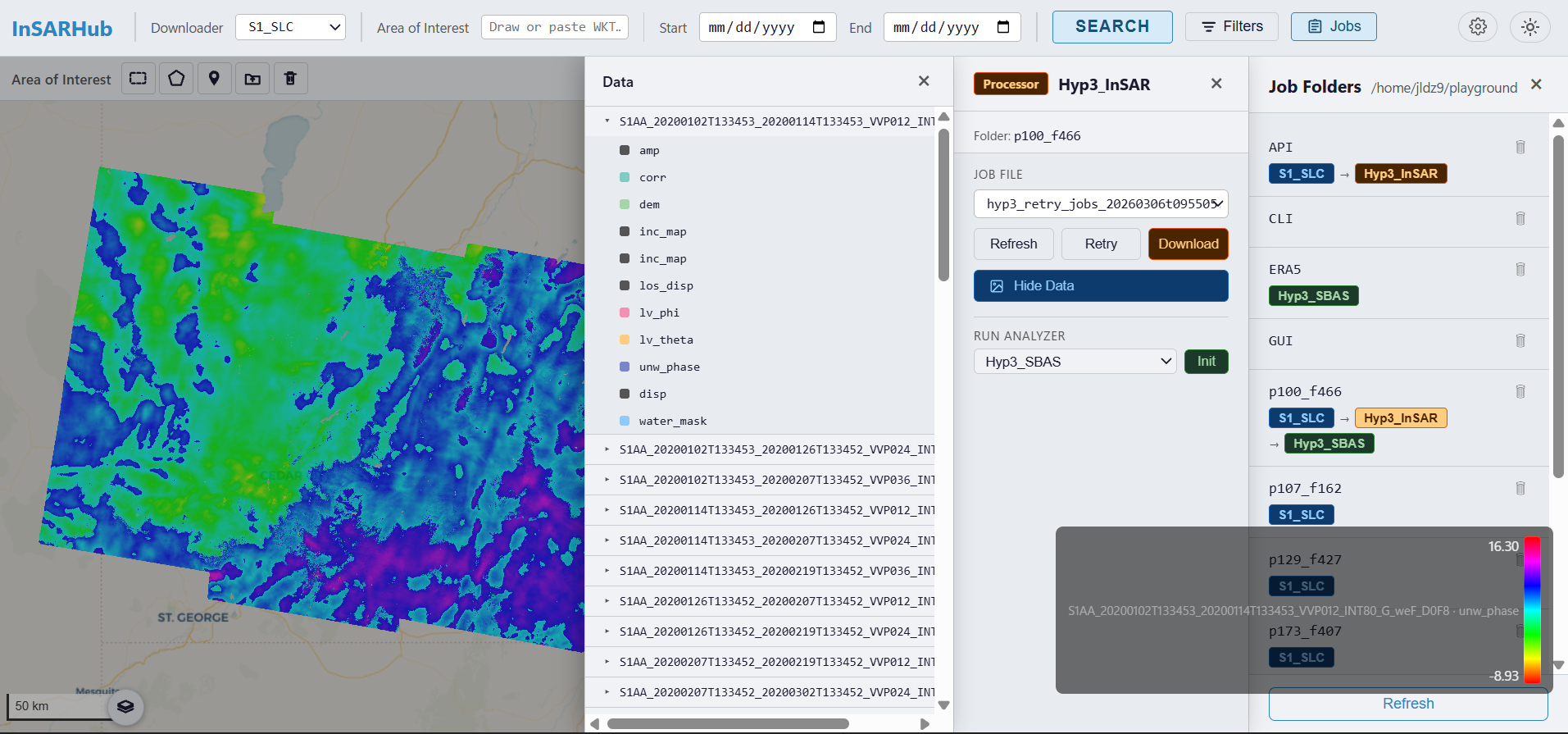
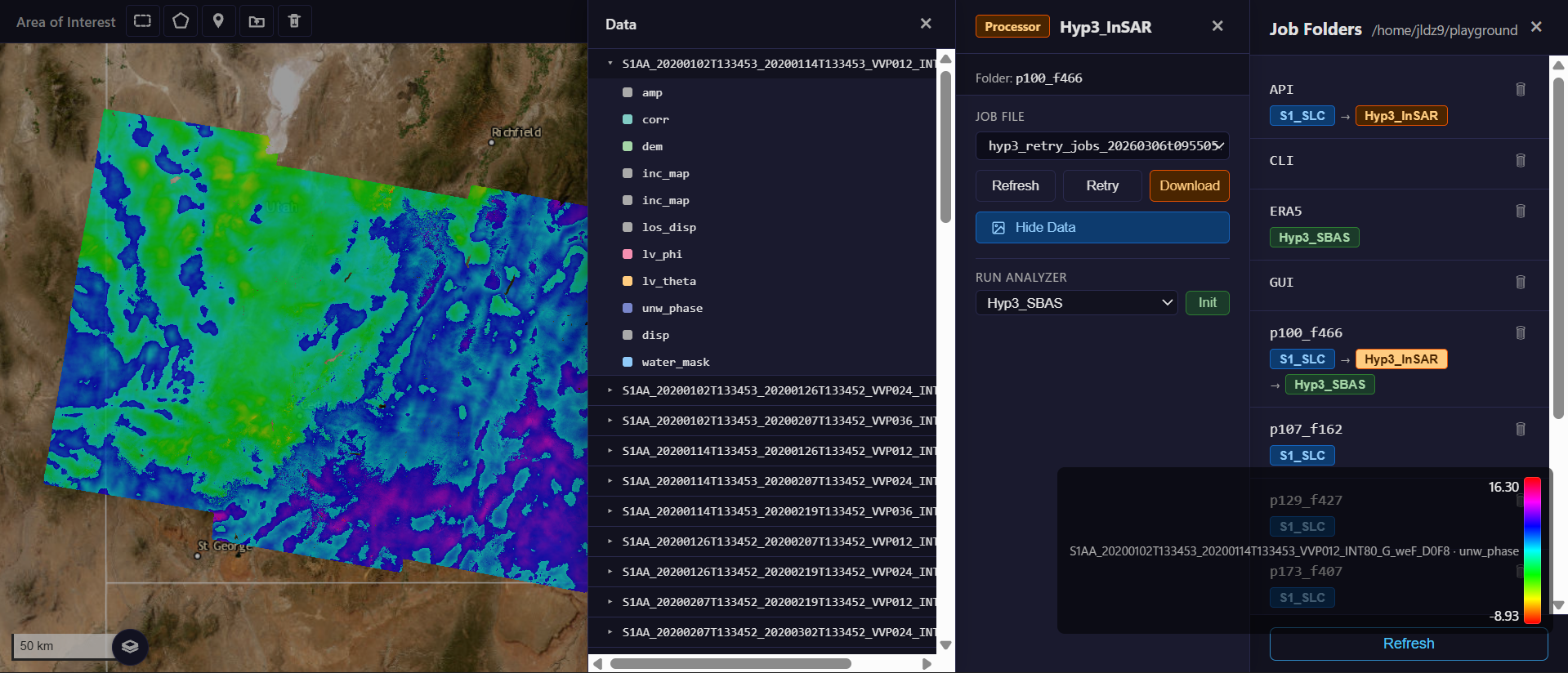
HyP3 interferogram product overlaid on the basemap.
Other Actions
| Button | Description |
|---|---|
| Refresh | Poll HyP3 for latest job statuses |
| Retry | Resubmit all failed jobs |
| Download | Download all succeeded interferograms |
| Watch | Poll HyP3 continuously until all jobs complete, then download automatically |
| Credits | Check remaining HyP3 processing credits |
| Button | Description |
|---|---|
| Refresh | Read step/command statuses from disk |
| Retry | Re-run all failed steps |
| Cancel | Stop running local process or scancel SLURM jobs |
| Watch | Poll step statuses until all steps complete |
| Button | Description |
|---|---|
| Refresh | Read stage/job statuses from disk |
| Retry | Re-run all failed stages |
| Cancel | Stop running local process or scancel SLURM jobs |
| Watch | Poll stage statuses until all stages complete |
| Button | Description |
|---|---|
| Refresh | Read per-stage statuses from disk |
| Retry | Re-run all failed stages |
| Cancel | Stop running local process or scancel SLURM jobs |
| Watch | Poll stage statuses until all stages complete |
Once processing is complete and interferograms are ready, proceed to the Analyzer panel to run time-series InSAR analysis.